
ImageBrowserPro / For photographers
Card in. Captioned, toned, and delivered.
What ImageBrowserPro does for a working photographer on your own machine, before anyone else is involved: ingest, cull, caption, tone, sequence, and deliver.
Photographer workflow
01
Ingest
02
Cull
03
Caption
04
Tone
05
Deliver
One workspace
The photograph stays in front of you from the card to the handoff.
Most assignments bounce between a copy utility, a viewer, a caption tool, an editor, and an export dialog. ImageBrowserPro keeps those steps in one window, so the frame you are captioning is the frame you are looking at, and the file you deliver is the one you just checked.
Originals are never painted on or silently replaced. Ingest copies leave the card untouched, Selection Sets hold references instead of moving files, and export and Save As create new copies.
Team and athletics photographers
Set up the game once. Caption it. Job done.
Built around a deadline, a roster, and a few thousand frames.
SHOOT SETUP
Answer the game facts one time.
Save team, opponent, event, location, date, and photographer as a named shoot, then reuse those answers in filename recipes and caption phrases.
CODE REPLACEMENTS
Type a number, get a name.
Import a roster table and expand shorthand into names and phrases while you caption. Expansion saves typing; you still confirm who is in the frame.
BURSTS / CAMERA TAGS
Find the play.
See one cover per burst, scrub or play the run, and jump to a frame you tagged in camera with the frames before and after it.
LIVE INGEST
Files arrive while you shoot.
Watch an FTP location or a local folder and bring arriving files into review, with duplicate skips and a status you can inspect.
SPORTS DEADLINE
Keep the deadline in view.
Record the sport, venue, teams, deadline, select target, and a primary and backup delivery route beside the photographs.
TEAM & ATHLETICS / OPTIONAL
Roster and athlete delivery.
An optional add-on for roster assignment and approved athlete delivery copies. It is released separately from the core app.
Burst mode
Find the one frame hiding in a run of lookalikes.
At 30 to 120 frames per second, tagging in camera on the fly gets you close, not exact. The frame you tagged is often a few frames away from the one you wanted.
Burst mode gathers each burst under one cover and opens it by itself on a timeline, like a video clip. Play it back as stop motion or step through it a frame at a time until the right picture shows itself. A burst with a camera-tagged frame opens at that frame, with the frames before and after it in reach.
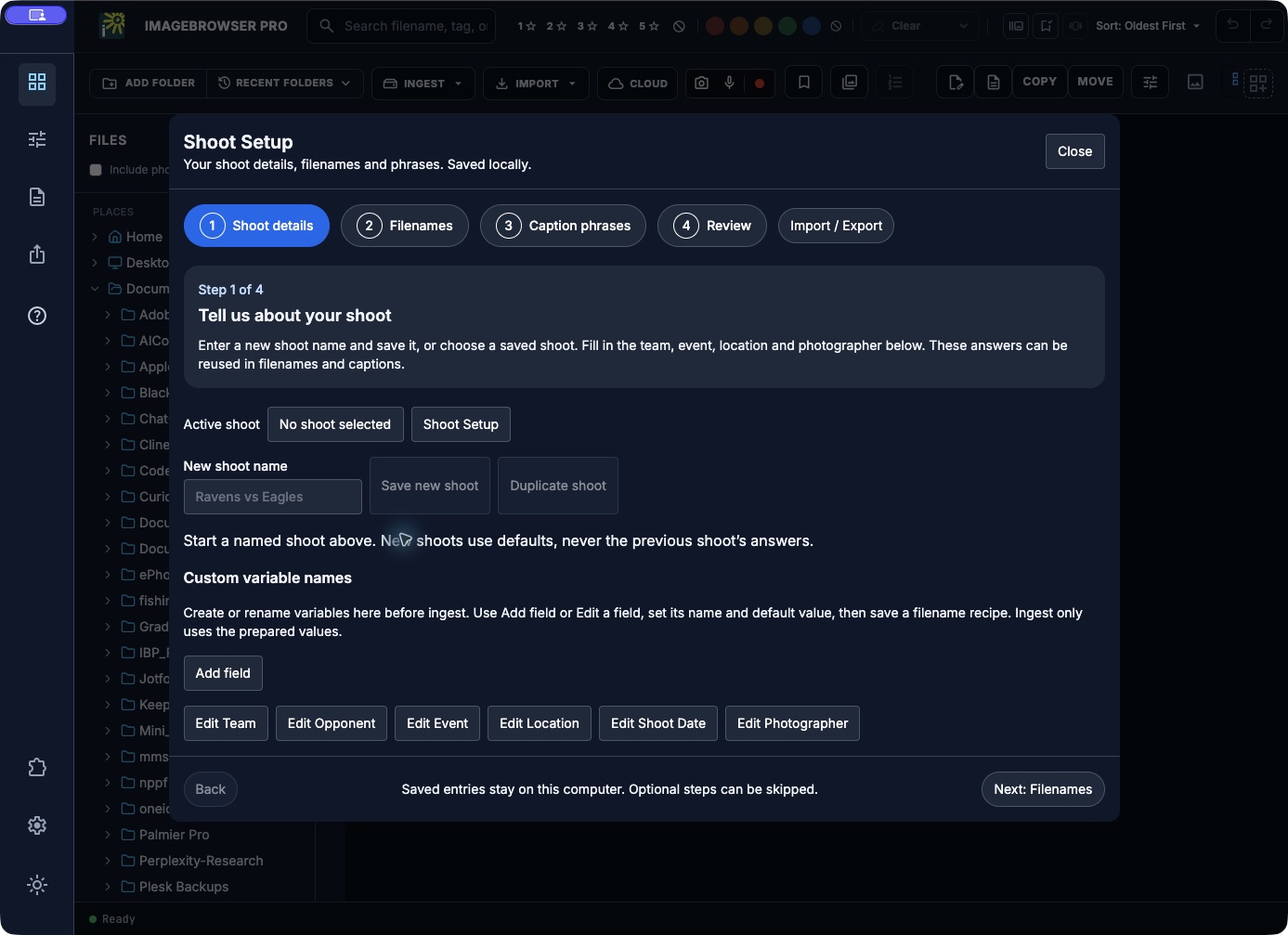
Shoot Setup
Filenames and caption phrases from the same answers.
Build a filename recipe from labeled fields and check the example before ingest renames anything. Save a caption phrase, insert it in the caption editor, and review the sentence for that photograph.
Opening a setup does not rename files, stamp metadata, or identify people. You decide when it is applied.
Photojournalists
Accurate captions, honest toning, on deadline.
The habits a picture desk expects, built into the workspace.
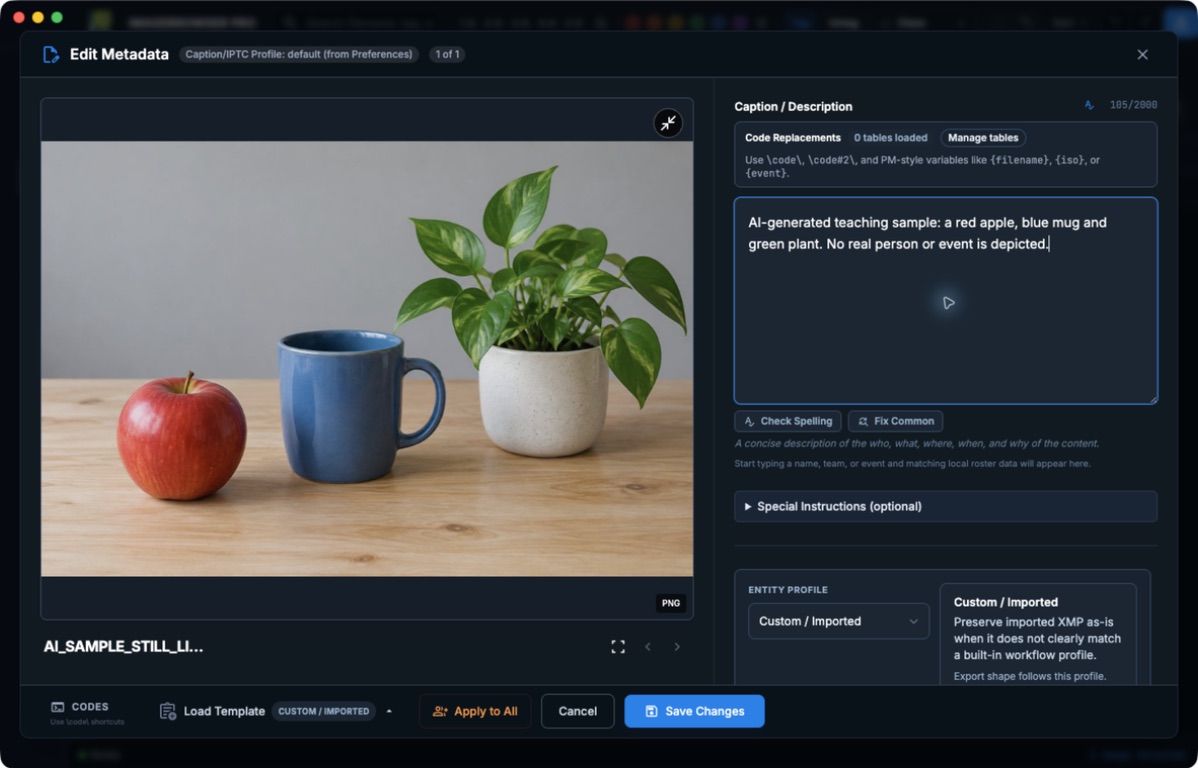
CAPTION
Write with the picture in view.
Caption, headline, creator, credit, copyright, keywords, and location are written to EXIF, IPTC, and XMP fields that travel with the file.
VOICE MEMOS
Recover the names you spoke.
Play the camera voice memo attached to a frame and transcribe it locally. Local transcription needs its runtime and model installed, and you correct names before using the text.
EDITORIAL PROFILE
Only the adjustments your rules allow.
The Editorial profile limits the built-in editor to basic tone, white balance, crop, and sharpening.
INGEST
Copy first. Keep the card.
Copy ingest leaves the source untouched, organizes folders, can apply names and metadata on the way in, and can verify the copies.
TEMPLATES
Shared event details in one step.
Apply an IPTC template to a batch, then finish each caption by hand. Hot codes fill supported file and camera variables.
FTP / NEWSROOM
Send it to the desk.
Deliver to a Custom FTP destination you set up. Asset-library and WordPress connections are optional add-ons, and you check the result at the other end.
Captions
Write the caption with the image in sight.
Enlarge the frame while the caption stays editable, so names, numbers, and details are checked against the picture and not against memory.
Field visibility is yours to configure, so the editor shows the fields your publication requires.
Editorial photographers
Build the edit, then put it in order.
For stories, portfolios, and projects that run longer than one night.
SETS
Gather picks without moving originals.
Selection Sets hold references to photographs. Keep separate sets for the final edit and the alternates, and mark a long-running story as ongoing.
SEQUENCE
Order that survives the handoff.
Arrange the final order, then export numbered copies so the files sort the way you intended. Source originals are not renamed.
RATE / COMPARE
Choose between near-identical frames.
Stars, color labels, and picks, filter and search across the take, and side-by-side comparison with shared zoom and pan.
BROWSERBOARD
See the story laid out.
Arrange photographs on a spatial board to see how they relate before you commit to a sequence.
SLIDESHOW STUDIO
Turn the edit into a presentation.
Export an ordered set as a self-contained HTML slideshow or a PowerPoint file, with text slides for titles and credits.
CONTEST PREP / OPTIONAL
Check the entry before you submit.
An optional add-on checks the metadata fields a contest or agency profile asks for. It cannot guarantee an entry is eligible or accepted.
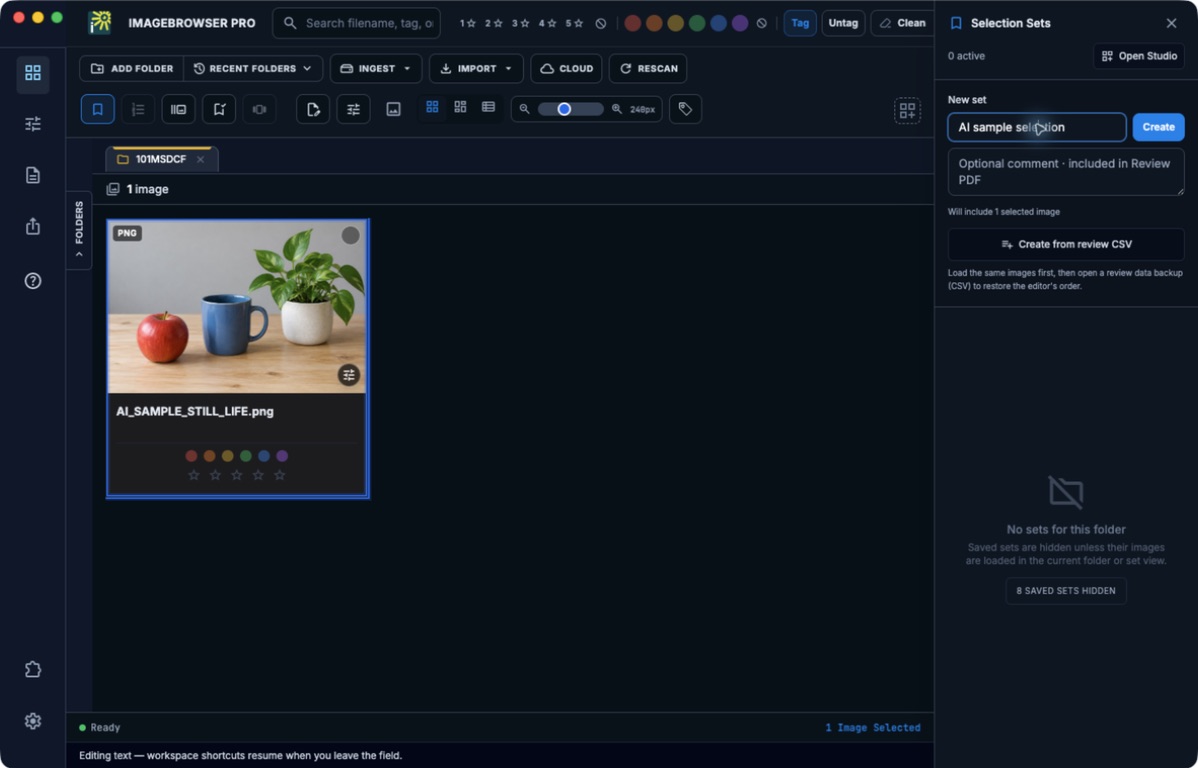
Selection Sets
One take, several edits, no duplicate files.
A set is a list of references, so the same photograph can sit in the final edit, the alternates, and a portfolio set at once.
A Selection Set is not a backup. Keep your originals and sidecars together and backed up the way you normally do.
Advertising and commercial photographers
More latitude in the edit, and a clean handoff.
For client work where the look matters and the files go on to someone else.
ADVERTISING PROFILE
Open up the full editor.
The Advertising profile adds color, presence, noise removal, Quick Mask, and effects to the basic tone and crop tools.
QUICK MASK
Lift a face out of shade.
Lighten a shaded area with a movable mask, compare the result, and keep the adjustment history.
SOCIAL
Crop and preview for the feed.
The Social Media profile adds filters and film grain, social crop presets hold a fixed frame, and a phone preview shows the sequence. Previews do not publish anything.
EXPORT
Deliver to the spec.
Export JPEG, PNG, or WebP copies at the requested size and quality with a filename pattern, sequence numbers, chosen metadata, and an optional watermark. Contact sheets are a separate export.
WORKFLOW PACKAGE
Hand over the real files.
Package originals, delivery files, and sidecars into a handoff folder with a manifest, or send a frame to an external editor for further pixel work.
CLOUD
Pull from a client folder.
Browse and download from Google Drive, Dropbox, or OneDrive, or import from Apple Photos. During the beta, Google and Microsoft sign-in works with personal accounts.
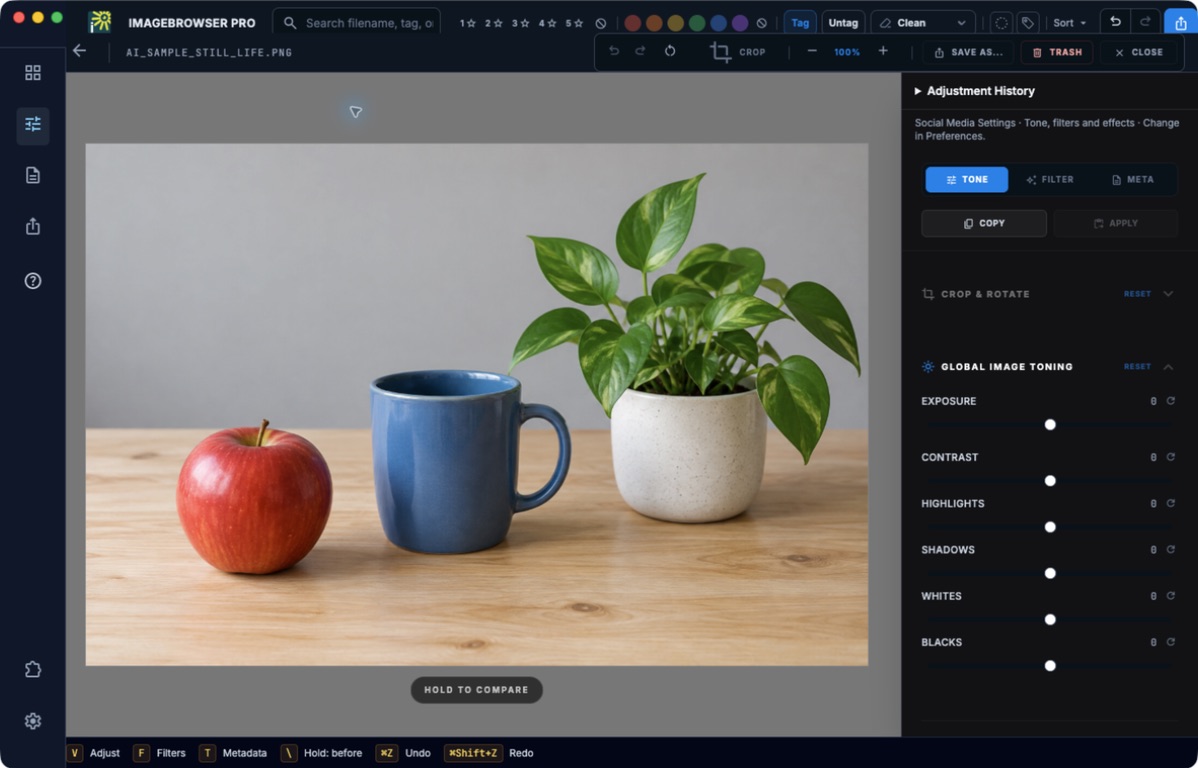
Crop and tone
Pick the editing profile that fits the job.
Editorial, Advertising, and Social Media profiles decide which tools appear, and you can turn individual tools on or off.
A preview is not an exported image. Save As and export create the finished copy.
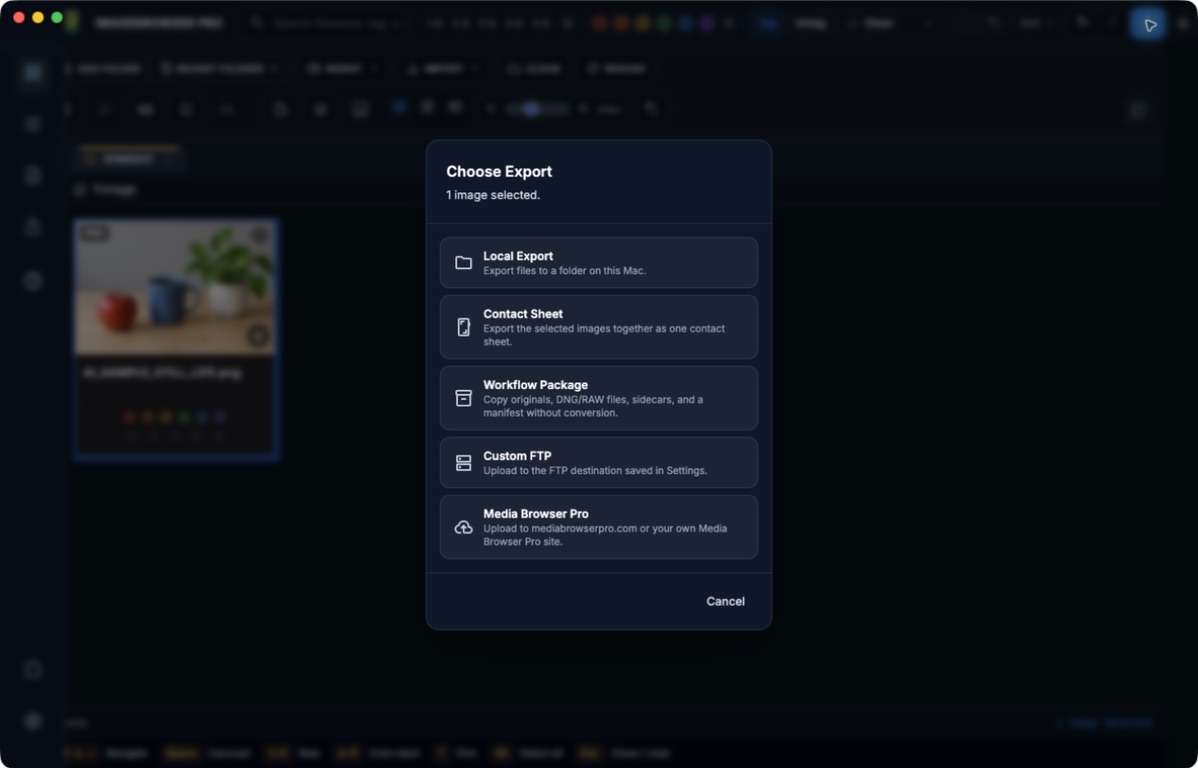
Deliver
Choose the handoff that fits the client.
Local export, contact sheets, workflow packages, and a Custom FTP destination are all reached from one Export dialog.
Remote destinations need their own setup. Open the result at the other end before you call it delivered.
The full list
Everything it does on your own machine.
Collaboration, teaching, and grading tools are described on their own pages. This is the rest.
- Ingest: copy from a card or folder, organize folders, rename and stamp metadata on the way in, verify copies, split a large take into folders, and eject the card.
- Live ingest: watch an FTP location or a local folder and review files as they arrive.
- Browse: tabs, grid, cards, and list views, sorting, panels, and file actions on local folders.
- Cull: RAW and JPEG stacks, bursts, camera-tagged frames, stars, color labels, picks, filters, search, and side-by-side compare.
- Caption: EXIF, IPTC, and XMP editing, required-field checks, IPTC templates, code replacements, hot codes, and Shoot Setup.
- Voice and video: voice-memo playback, local transcription, and video clip playback.
- Crop and tone: Editorial, Advertising, and Social Media profiles, crop and straighten, tone and white balance, Quick Mask, and history.
- Organize: Selection Sets, sequencing, BrowserBoard, and sequence backup to CSV.
- Deliver: export, contact sheets, watermarks, batch rename with saved naming conventions, workflow packages, external-editor handoff, and Custom FTP.
- Present: Presenter Mode from the carousel, and HTML or PowerPoint slideshows.
- Plan: Sports Deadline assignments with deadlines, select targets, and delivery checks.
- Connect: Google Drive, Dropbox, OneDrive, and Apple Photos import.
- Optional add-ons: team and athletics tools, contest and agency metadata prep, asset-library and WordPress delivery, and reviewable AI assistance for caption drafts and roster numbers.
Plain about the beta
What to expect today.
ImageBrowserPro is in limited beta on macOS. The first beta build is the core app; optional add-ons are released separately, and menu labels and tools can vary with your edition.
The screenshots on this page are actual app captures that use AI-generated practice images with no people in them. They show the controls, not a real assignment. Camera formats, FTP servers, and cloud providers each have their own limits, so try it on a small disposable set first.
IMAGEBROWSERPRO / BETA RELEASE
Bring one real assignment.
Request the beta and take a shoot from the card to the delivered file.
Questions? Email support@smgmediaworks.com