
ImageBrowserPro / For teachers and visual-communications programs
Teach with the photograph in front of you.
Built by a photojournalist turned professor. Grade against a rubric, draw on the frame, record your explanation, and hand feedback back to students without ever leaving the picture.
Why teachers use it
This is not a photo viewer with a rubric bolted on.
Most image tools stop at showing the picture. The teaching happens somewhere else: a rubric in a spreadsheet, comments in an email, a screenshot with arrows pasted into a learning-management system. By the time a student reads the feedback, it has drifted away from the frame it was about.
ImageBrowserPro keeps the conversation attached to the photograph. You mark the image without changing the original, score it against criteria you wrote, speak your critique while you draw, and send a small revision file the student opens beside their own take. The same app teaches the professional habits that matter after graduation: accurate captions, credits, and metadata written with the picture in view.
Designed for the classroom
Everything a visual critique needs, in one place.
Draw, grade, record, return, and present from the same photograph.
DRAW / MARKUP
Mark the frame.
Pen, arrows, circles, rule of thirds, golden ratio, sticky notes, and a crop guide let you show why a photograph works. The original file is never painted on.
GRADER / RUBRICS
Grade against criteria.
Build a rubric or import one from CSV, then score and comment on each photograph criterion by criterion. Optional Grader Browser Pro workflow.
CRITIQUE BINDERS
Return feedback that travels.
Send an image-free revision file through the class’s shared folder. Students open it beside their own take; your notes stay read-only and theirs stay separate.
RECORD / VOICE
Say it out loud, and show it.
The built-in screen recorder captures your voice and your markup together, so students hear your reasoning and see the visual cues as you draw. No separate recording app.
PRESENT / TEACH
Teach in the room.
Use Presentation Mode to put a slide, the live ImageBrowserPro grid, or one selected photograph in a single audience window. Export a Selection Set as HTML or PowerPoint when you need a file to share.
WORKFLOW / HABITS
Teach professional habits.
Captions, credits, keywords, and IPTC metadata are written beside the photograph. Assignments carry a deadline, a selection target, and a delivery plan.
Teacher workflow
01
Assign
02
Review
03
Mark up
04
Grade
05
Return
Visual communications
Make critique clearer for you and more useful for them.
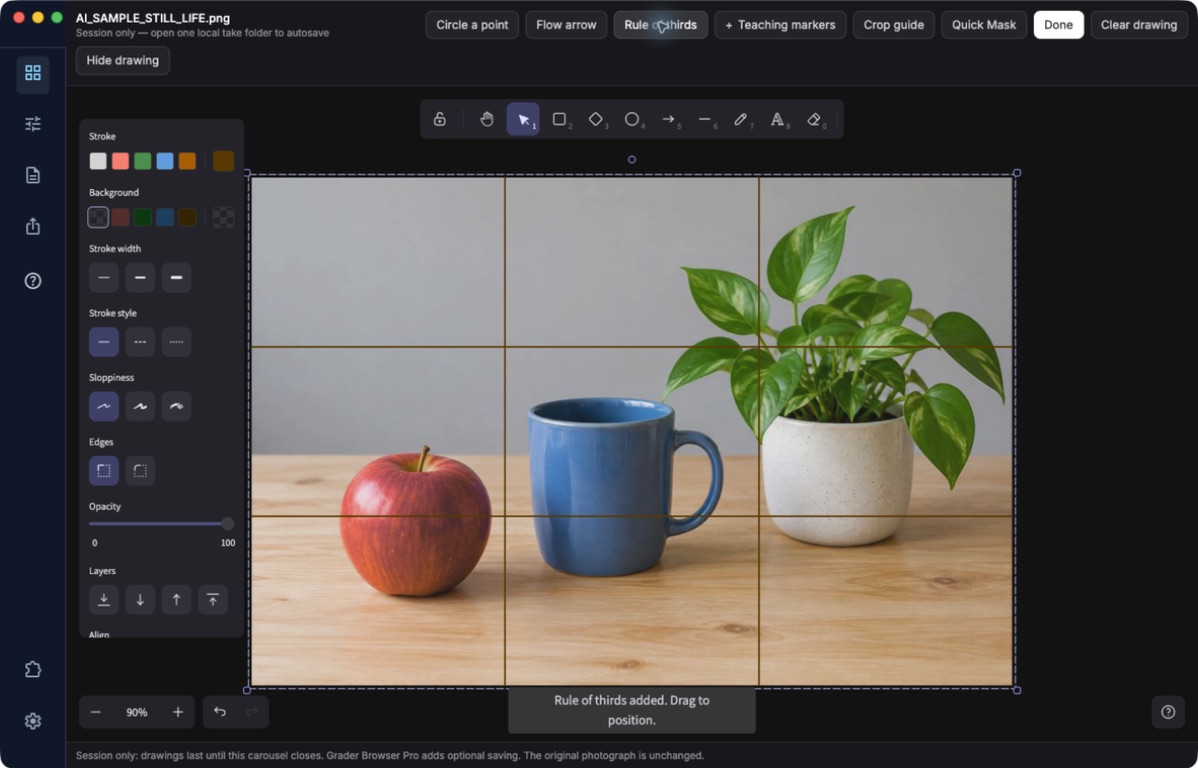
Students learn composition, attention, and story structure faster when feedback points at the picture. Draw an arrow where the eye travels, lay a thirds grid over the frame, circle the moment that carries the story, then record why.
Because marks live in a separate layer, the same photograph can be reviewed again next semester, or by a different instructor, without starting over.
See the feedback take shape.
Open an AI-generated practice photograph, circle the coffee cup and draw a bold arrow toward the plant. The markup stays separate from the original photograph.
Development component demonstration with AI-generated imagery. The arrow is drawn in the ImageBrowserPro Work Mode interface.
Presentation Mode / teach live
Slides and photos. One audience window.
Presenter Studio gives your audience one window. The layout switcher moves between Slides, Slide + Grid, Slide + Photo, and Grid while the session continues. Introduce an assignment on a PowerPoint slide, show the live ImageBrowserPro grid beside it, then focus on a selected photograph without swapping windows.
The audience sees a working ImageBrowserPro browser for search, sorting, and review. Your notes, timer, and session controls stay in the private Studio window. Share only the audience window in a call or put it on an extended display.
See the switcher, setup steps, and shortcuts in the Presenter Mode guide →
Presenter Studio is in development and may not be in the currently installed beta. PowerPoint animations and embedded media are not supported in the audience window.
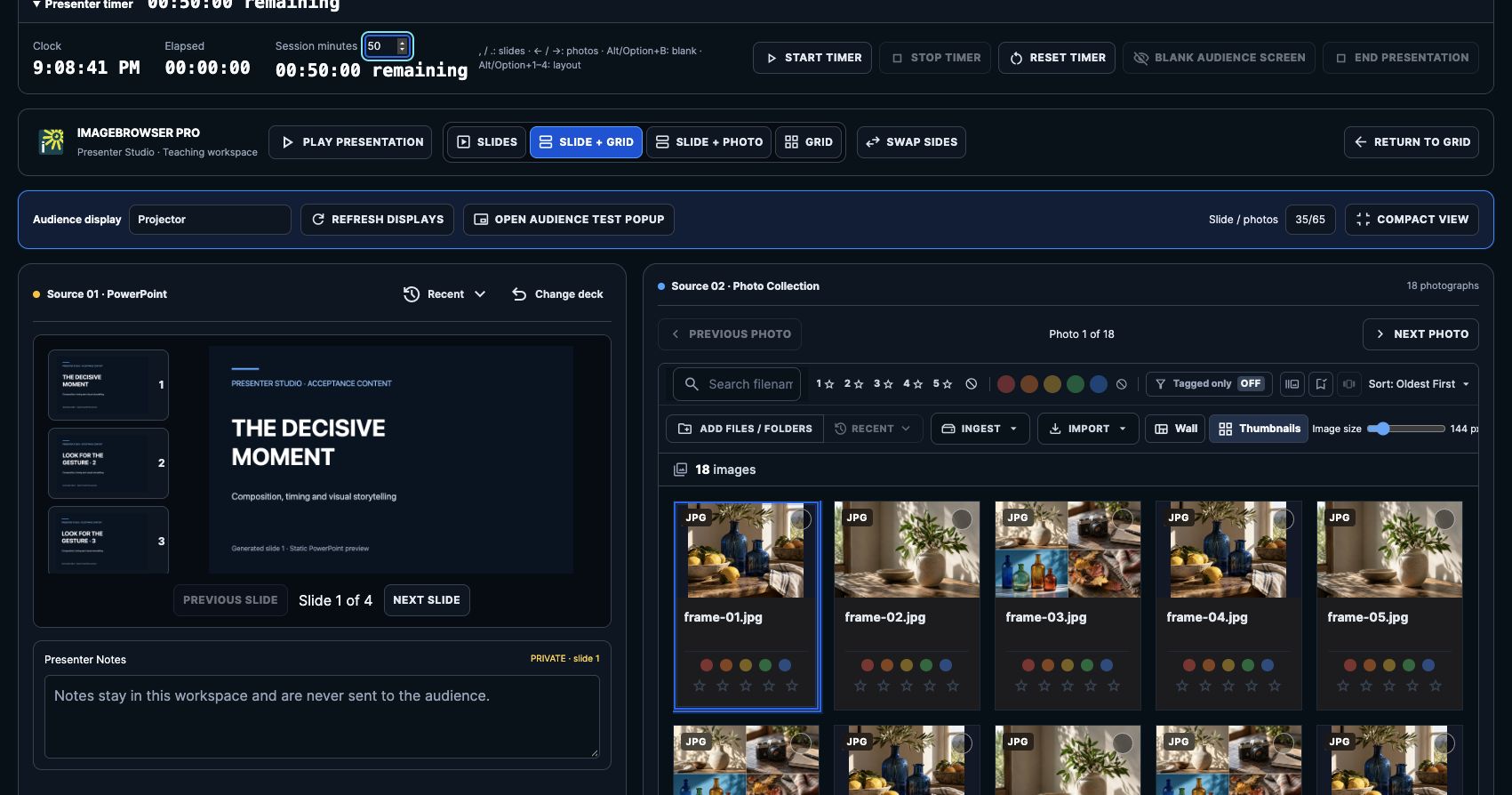
Watch the audience view change.
Slide Deck → Slide + Grid → Slide + Photo → Grid Only. The left side is Presenter View; the right side is Audience Facing Presentation View. Your notes and controls stay in Studio as the audience layout changes.
Dark-mode development component preview with AI-generated practice photos and slide. Native projector and call-sharing validation remains open.
Plain about the beta
What to expect today.
ImageBrowserPro is in limited beta. Grader Browser Pro is an optional workflow for teachers, and Critique Binders are part of the core app. Learning-management grade passback is Moodle-first and works only after your institution has configured and approved it; a locally saved grade is never sent to an LMS automatically. A dedicated student edition is not available.
We recommend a small pilot first: one rubric, one assignment, a handful of students. Tell us what your program needs and we will tell you honestly whether the beta fits.
IMAGEBROWSERPRO / TEACHERS BETA
Bring it to your program.
We are especially looking for visual-communications and photojournalism educators to help shape the release.
Questions? Email support@smgmediaworks.com