
ImageBrowserPro / Capture to caption
Get from the card to a captioned edit, fast.
Ingest safely, find the frame, write the caption with the photograph in view, and finish the tone, all in one workspace.
Ingest / Bring the shoot in
Copy first. Keep the card until you have checked.
Copy ingest copies photographs from a card or source folder into a working folder and leaves the source files unchanged. Choose the source and destination, watch the progress, and keep the card until you have checked the copies and made your normal backup.
For events, Live Event Ingest watches an FTP location or a local folder and brings arriving files into the normal review workflow, with duplicate skips and status you can inspect. It is a client and watcher, not an internet-facing FTP server.

Cull / Find the frame
Narrow the take without losing the moment.
You make the final human selection. The software helps you get there.
BURSTS / STACKS
See the whole sequence.
Sort by burst to see one cover per sequence, then scrub the filmstrip, play the run, and return to the moment you want. RAW/JPEG stacks can be reviewed too.
CAMERA TAGS
Review around the late tag.
Jump to a camera-tagged frame and see the neighbors before and after it, so you can find the moment you tagged late.
RATE / COMPARE
Mark, filter, and compare.
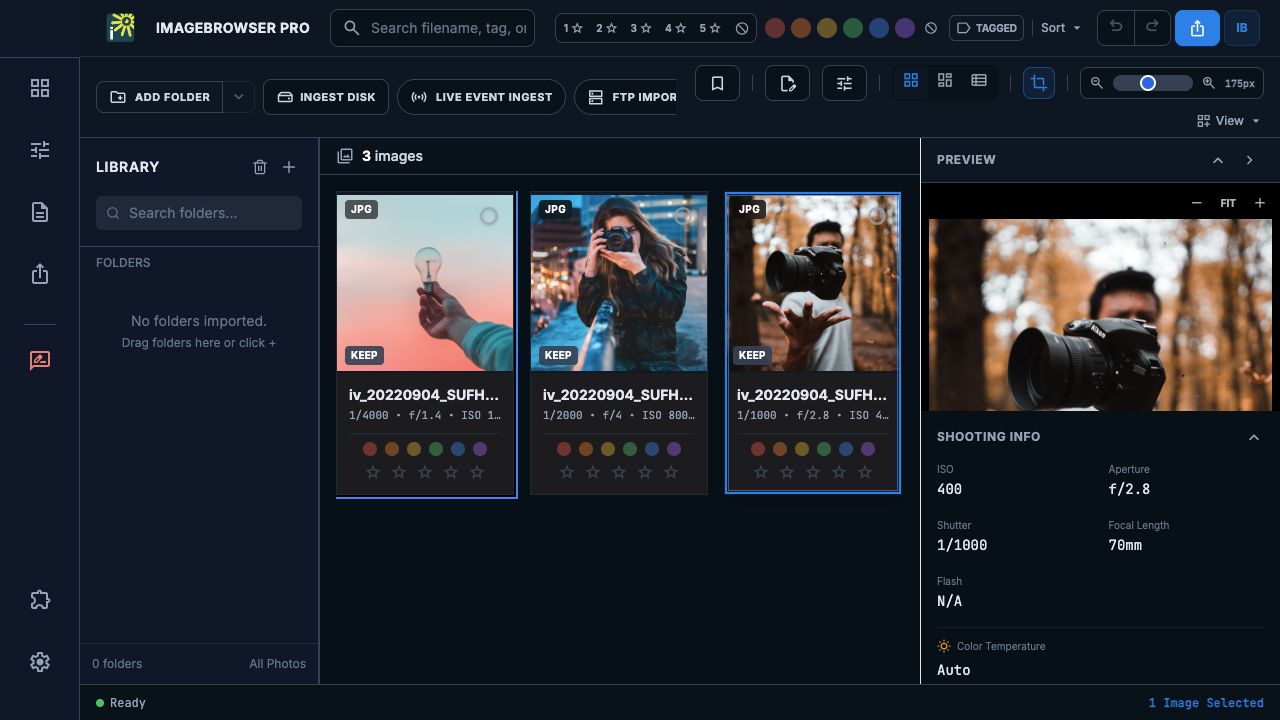
Use stars, color labels, and IBP picks, filter and search the take, and compare candidates side by side with comparison zoom and pan.
Caption / Metadata
Write the story with the picture in view.
Enlarge the photograph while the caption stays editable. Write the caption, headline, creator, credit, copyright, keywords, and location fields that travel with the file.
Load a template to apply shared event details to a batch, and use code replacements to expand shorthand for names and phrases you type again and again. Expansion saves typing, and you still check every fact.
Tone / Finish the frame
Crop and tone with an editing profile.
Choose the editing profile that fits the assignment, then frame and adjust the image. Lighten a shaded area with Quick Mask, compare the result, and use Save As to create an exported copy.
IMAGEBROWSERPRO / BETA RELEASE
Try it on a real shoot.
Request the beta and take one assignment from the card to the caption.
Questions? Email support@smgmediaworks.com